Quick Answer
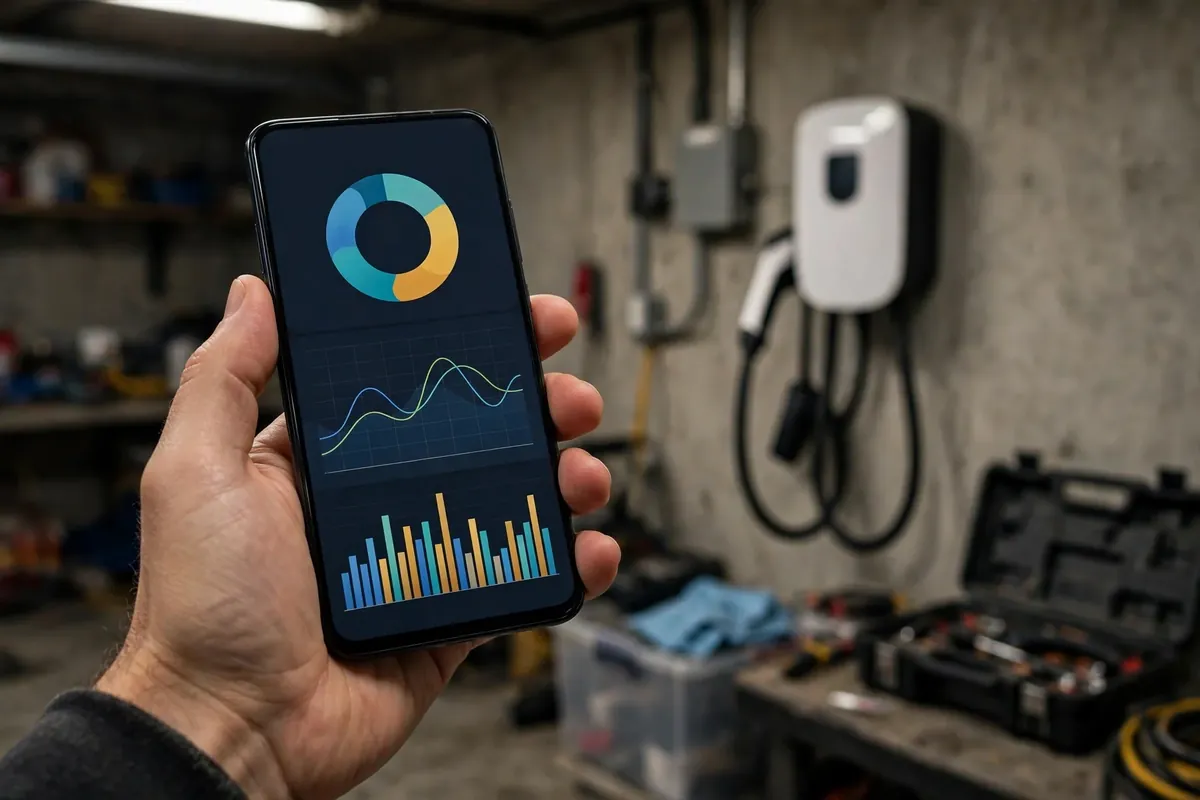
A smart EV charger's Wi-Fi connection does two jobs, and only two: it reports charging activity to the app, and it lets the app or the charger maker send settings and updates to the charger. It does not deliver the electricity, and it does not decide whether the car charges. That distinction is the key to staying calm when the connection drops: a charger that has lost Wi-Fi but still charges is a charger with a network problem, not a charging problem. The car will still charge on its own schedule, the charger will still deliver power at its configured current, and the missing piece is reporting and remote control until the connection returns.
This guide works through Wi-Fi problems in the order that solves them fastest. First, confirm what still works — does the car charge, does the charger show normal lights, does the rest of the house have Wi-Fi. Second, identify which of the three suspects is at fault: the charger, the network, or the app account. Third, apply the fix for that suspect, from the simplest (a router restart, a password re-entry) to the more involved (a Wi-Fi extender, a charger rejoin). Along the way it covers the traps: the double schedule, the band confusion, the QR code that will not scan, and the firmware update that looks like a fault. It is written for smart chargers generally, not for one maker, because the diagnosis logic is the same even though the menus differ. Where a step depends on a maker's app, this guide says so, and the charger's manual is the authority for the exact taps.
If your charger is a Tesla Wall Connector, the ownership guide covers its app settings, lights, and sharing features, and this guide's network sections complement it. If your charger trips its breaker, stop here and use the breaker-tripping guide instead — a network guide cannot fix an electrical fault, and an electrical fault should not be troubleshot as a Wi-Fi problem. If you are new to home charging generally, the beginner's guide covers schedules and charge limits, which interact with Wi-Fi in ways section 7 explains.
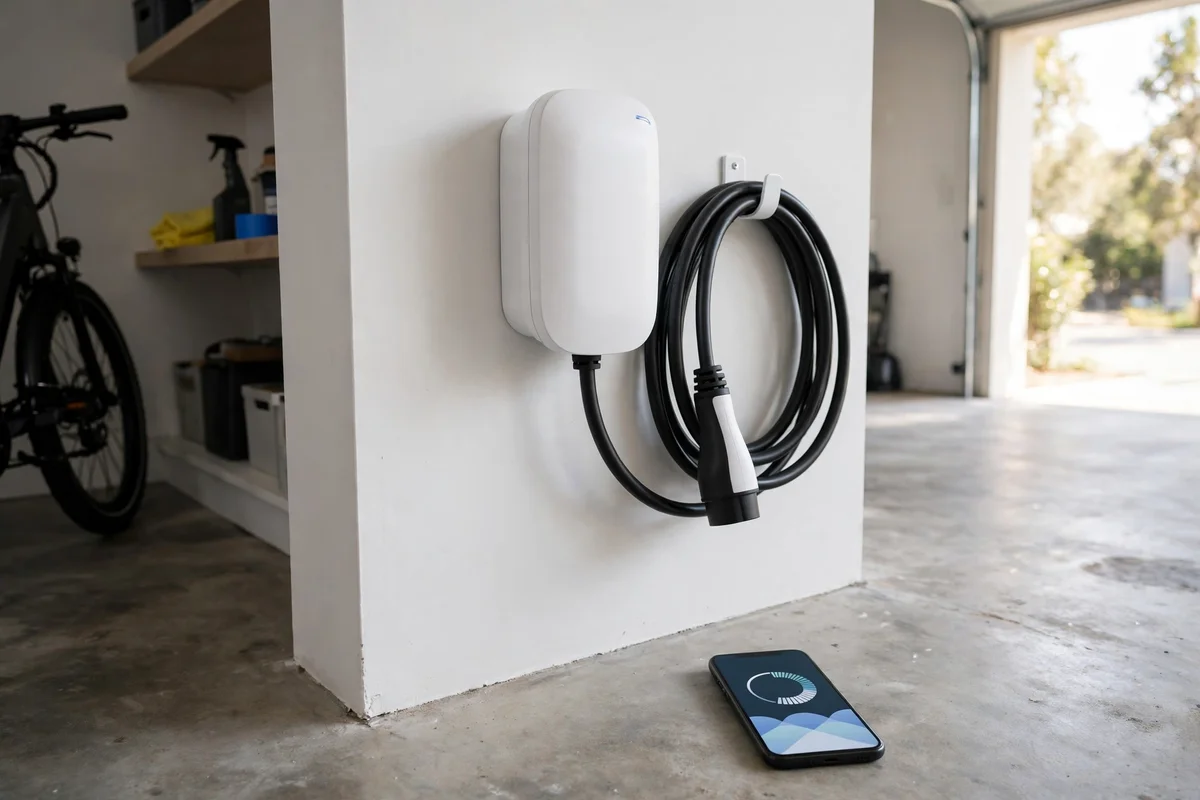
1. What Still Works When Wi-Fi Drops
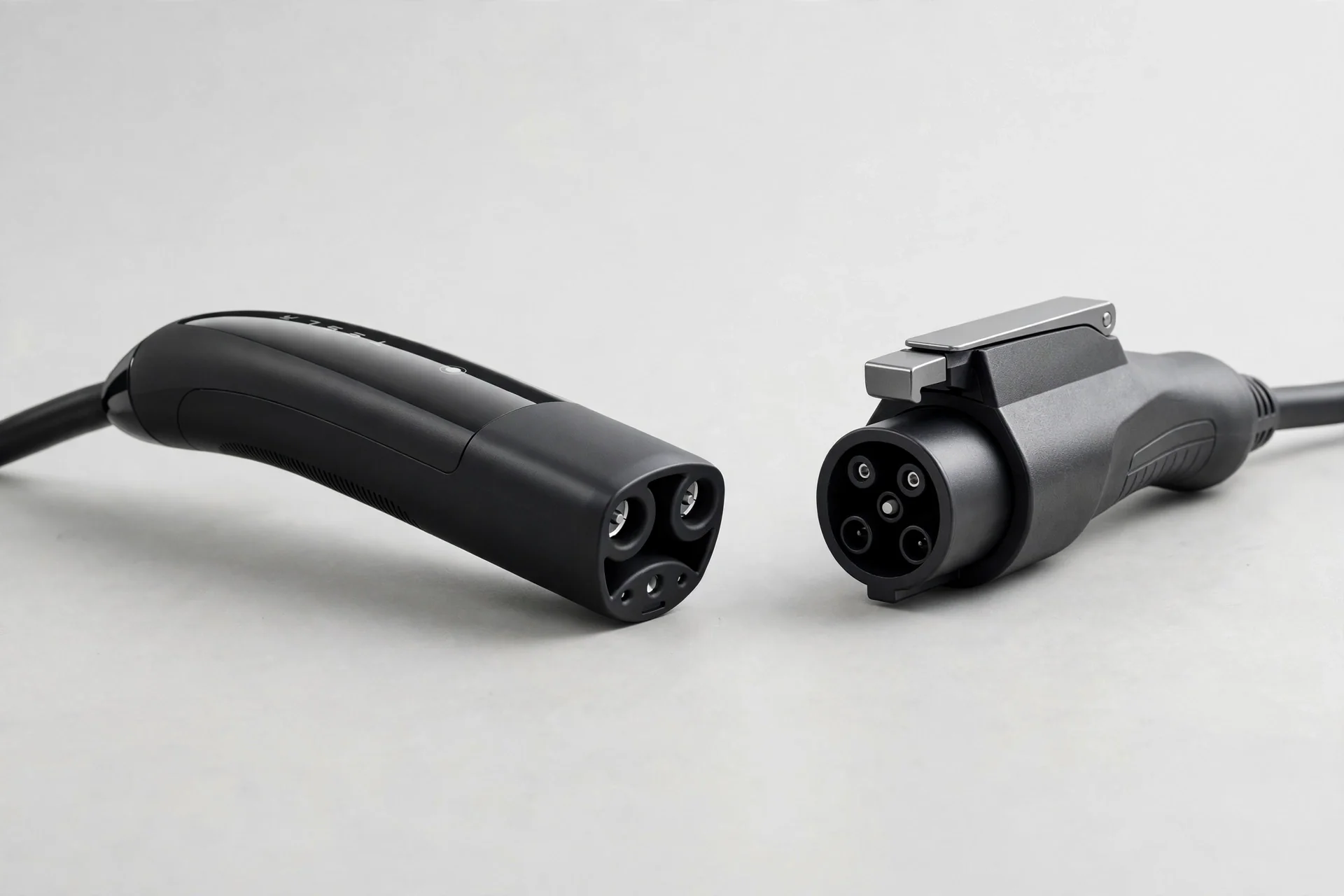
Start every Wi-Fi investigation with a charging test, because the result splits the problem in half. Plug the car in, or check a session that already ran, and ask: did the car charge, or is it charging now? If the answer is yes, the charger, the circuit, and the car are all fine, and the problem is confined to reporting and remote control. If the answer is no, the problem may be electrical or a charger fault, and the Wi-Fi angle is a distraction until charging itself is restored. Owners who skip this test often spend an evening reconfiguring a network for a charger that actually has a tripped breaker or a schedule problem, which is why the test comes first.
The second observation is the charger's own signals. Most smart chargers carry a status light, and the manual's light table distinguishes a normal pattern from a fault pattern. A calm pattern during charging, or a calm idle pattern when the car is unplugged, generally means the charger is healthy and the issue is connectivity. A fault pattern, a dark unit, or a pattern that is new and persistent means something else is happening, and the manual — not the app — is the next step.
The third observation is the rest of the house. Is the home Wi-Fi itself working on a phone or laptop near the router? Is it working in the garage, at the charger's location, or does the signal die somewhere between the house and the garage? A house-wide outage, a router that has restarted into a fault state, or a garage that sits at the edge of coverage are all network problems with network fixes, and they will affect more than the charger. A charger that is the only device failing, while phones and laptops work fine in the same spot, points back at the charger or its account. These three observations — charging works, charger lights normal, house Wi-Fi state — take two minutes and prevent most wasted effort.
2. The Three Suspects: Charger, Network, or Account
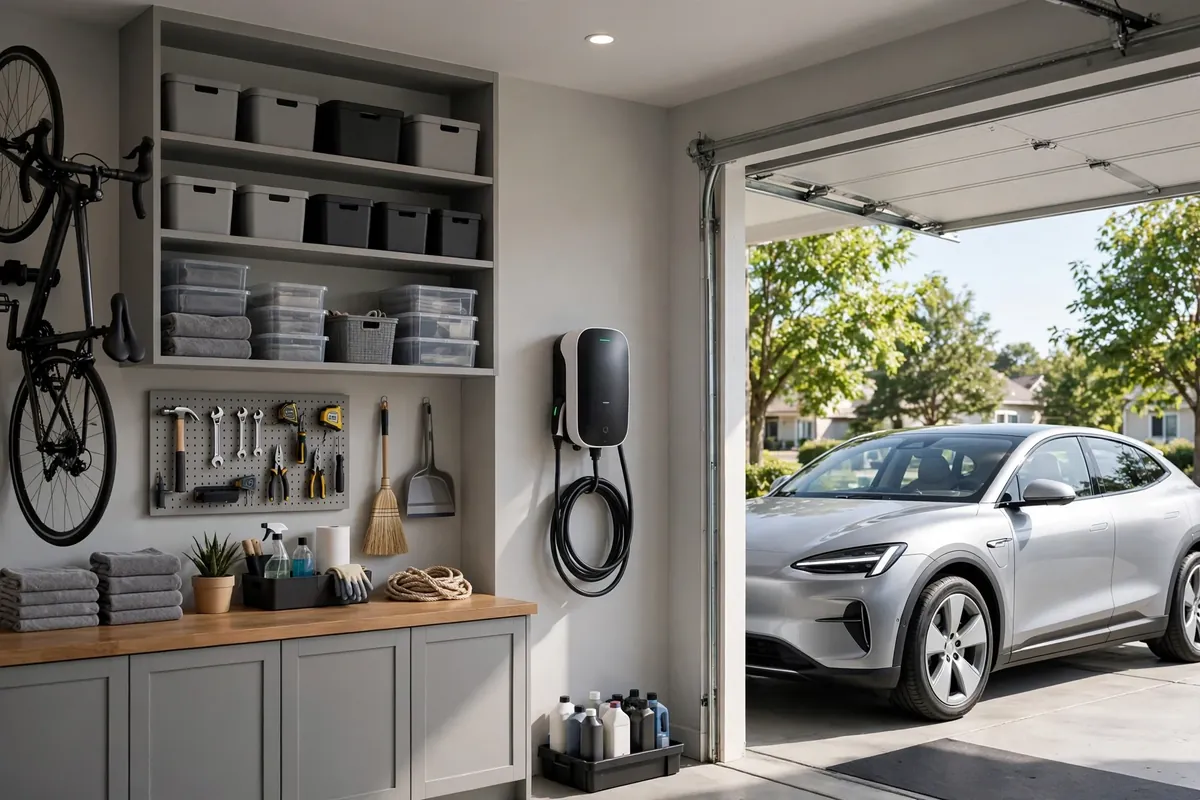
Every smart-charger Wi-Fi problem belongs to one of three groups, and the fix depends entirely on which group it is in. The charger group covers the unit's own radio, its stored network details, and its setup state. The network group covers the router, the signal at the charger's location, the Wi-Fi band and password, and anything between the router and the garage. The account group covers the app login, the charger registration, and the phone being used. Mixing the groups up is the most common troubleshooting error: reconfiguring a charger that actually needs a router restart, or replacing a router for a charger that actually needs its account re-linked.
The fastest way to separate them is a small set of checks. Can another device connect to the home Wi-Fi from the charger's location? If a phone held beside the charger shows a weak signal or no connection, the network group is the prime suspect. Did anything change recently — a new router, a changed password, a new internet provider, a power outage? A recent change points at the stored network details in the charger, which is the charger group. Does the app show the charger as offline while the charger itself looks normal and other devices connect fine? That points at the account group or the charger's registration. Write down what changed and when before changing anything else, because the most recent change is the most likely cause, and a troubleshooting session that starts by changing three things at once ends with nobody knowing which change fixed it.
One more separation matters: the difference between "offline in the app" and "offline on the network". A charger can be connected to the home network but unreachable from the app's cloud service during an outage on the maker's side, and it can be disconnected from the home network while the app still shows stale data from the last session. The app's status is a report, not a measurement. Where the app allows it, check the charger's own status page or setup interface, which reports the charger's own view of its connection. Where it does not, the phone-beside-the-charger signal check is the practical substitute.
3. Signal at the Garage: Distance, Walls, and Bands
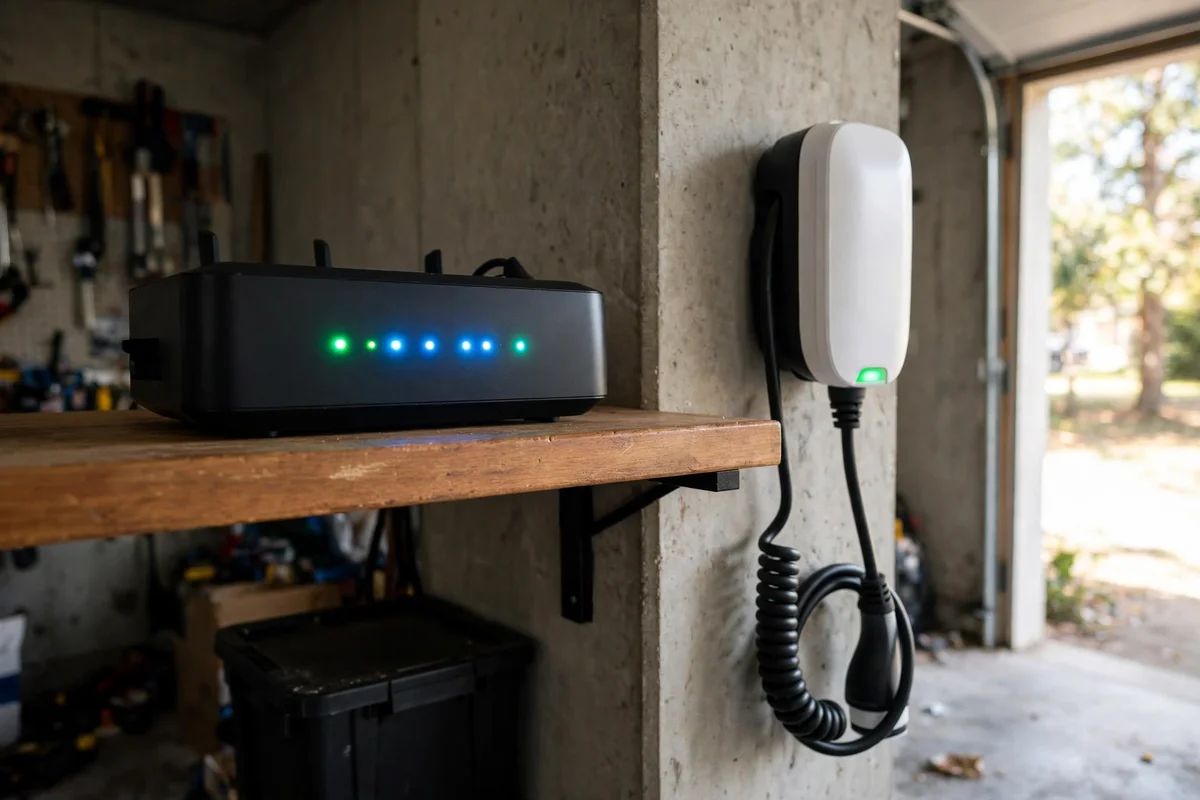
The garage is often the worst Wi-Fi location in the house, and that is a matter of physics, not of charger quality. Routers sit in living rooms and offices; garages sit behind concrete, brick, metal doors, and sometimes a whole house worth of walls. A signal that is strong in the kitchen can be marginal in the garage, and a marginal signal behaves exactly like the classic Wi-Fi complaint: the charger connects, drops, reconnects, and drops again, usually at night when a session starts and reporting matters most. Chronic dropping — weekly or more often — is the signature of a signal problem, and it will not be fixed by reconfiguring the charger, because the charger is not the weak part.
The first remedy is measurement. Stand beside the charger with a phone connected to the home Wi-Fi and look at the signal strength the phone reports, or run a speed test from that spot. A strong signal at the charger means the network reaches the garage and the problem lies elsewhere. A weak signal means the fix is a network improvement, and the usual options, in order of simplicity, are: moving the router or an existing access point closer to the garage side of the house, adding a Wi-Fi extender or mesh node between the router and the garage, or running a wired access point into the garage where the house allows it. An extender placed halfway between the router and the garage helps; an extender placed in the garage itself, where the signal is already weak, mostly repeats a weak signal and helps less than owners expect.
Wi-Fi bands are the second part of the signal story. Most home networks offer two bands: 2.4 GHz, which travels farther and passes through walls better but carries less speed, and 5 GHz, which is faster over short distances but fades faster through walls. Most smart chargers connect on 2.4 GHz, because a charger needs reliability and range, not speed — its data is tiny. If a router merges both bands under one network name, a charger should still find the 2.4 GHz band on its own, but some routers handle the merged setup poorly, and some chargers struggle with it. If a charger repeatedly fails to join a merged network, the practical fix is to give the 2.4 GHz band its own network name temporarily during setup, or to check the router's settings for a band-steering option that can be adjusted. Keep the password the same where possible, so other devices are unaffected, and record the change for the next person who works on the network.
4. Password Changes, New Routers, and Rejoining the Network
The single most common cause of a charger going offline is a change the owner made and forgot: a new Wi-Fi password, a new router, a new internet provider, or a router reset to factory settings. The charger stores the old network details and keeps trying them, and it will never guess the new ones. The symptom is distinctive: the charger charges normally, its lights look normal, and the app shows it offline, starting from the day of the change. If the offline date matches a network change, the diagnosis is already made, and the fix is to rejoin the charger to the network with the new details.
Rejoining follows a pattern that is similar across makers, though the exact taps differ. The charger enters a setup mode — often by holding a button, using a QR code on the unit, or connecting to a temporary setup network the charger itself broadcasts — and the owner enters the home Wi-Fi name and password through the app or a setup page. The QR code matters here: it is usually printed on the charger or in its manual, and it carries the setup details for that unit. If the QR code will not scan, the common causes are a damaged or faded label, poor light, a camera that cannot focus at close range, or a code that belongs to a different unit. Photographing the label in good light, cleaning it gently, or entering the setup details manually where the app allows it usually resolves the scan problem. Keep a photograph of the QR label and the setup credentials with the charger's manual, because a future router change will need them again, and a label that has spent years in a garage may not scan as well as it did on day one.
After rejoining, verify the fix properly: confirm the charger appears in the app, run a short charging session or check the next scheduled session, and confirm the session reports. A rejoin that looks successful in the app but is not verified against a real session can hide a second problem, such as a schedule owned by the wrong device, which section 7 covers. And if the network changes again in future, the rejoin procedure is the same — which is why recording the setup details matters more than remembering the procedure.
5. Repeated Drops, Power Outages, and the Router Restart
A charger that drops off the network repeatedly, or that goes offline after every power outage, usually has a network stability problem rather than a charger problem. Power outages deserve a specific explanation: when power returns, the router and the charger both restart, but they do not restart at the same speed. A charger that boots faster than the router can try to join a network that is not ready yet, fail, and wait — sometimes for a long time — before trying again. The same mismatch can happen after a router firmware update or a brief internet outage. The fix is often embarrassingly simple: restart the router, wait for it to come fully online, and then restart the charger by switching its breaker off and on, so the charger joins a network that is actually ready. The breaker step is a restart, not a repair, and it should be done once and deliberately, not repeatedly.
Repeated drops without any outage point back at signal strength, covered in section 3, or at a router that is struggling under load. A router serving many devices, a router with a failing power supply, or a router placed beside a source of interference can drop its weakest clients first, and the garage charger is often the weakest client. If other devices also drop occasionally, the router itself is the suspect, and the remedy is a router check or replacement, not charger work. If only the charger drops, and its signal at the location is strong, the charger's own radio or firmware becomes the suspect, and the maker's support route is the next step — with the observations from section 1 ready to describe.
A note on updates: smart chargers receive their software over Wi-Fi, and an update can briefly restart the unit, which looks alarming mid-session and is harmless between sessions. A charger that is offline simply waits on its current software while charging normally. Do not repeatedly restart a charger that is visibly mid-update.
6. App, Account, and Phone Problems
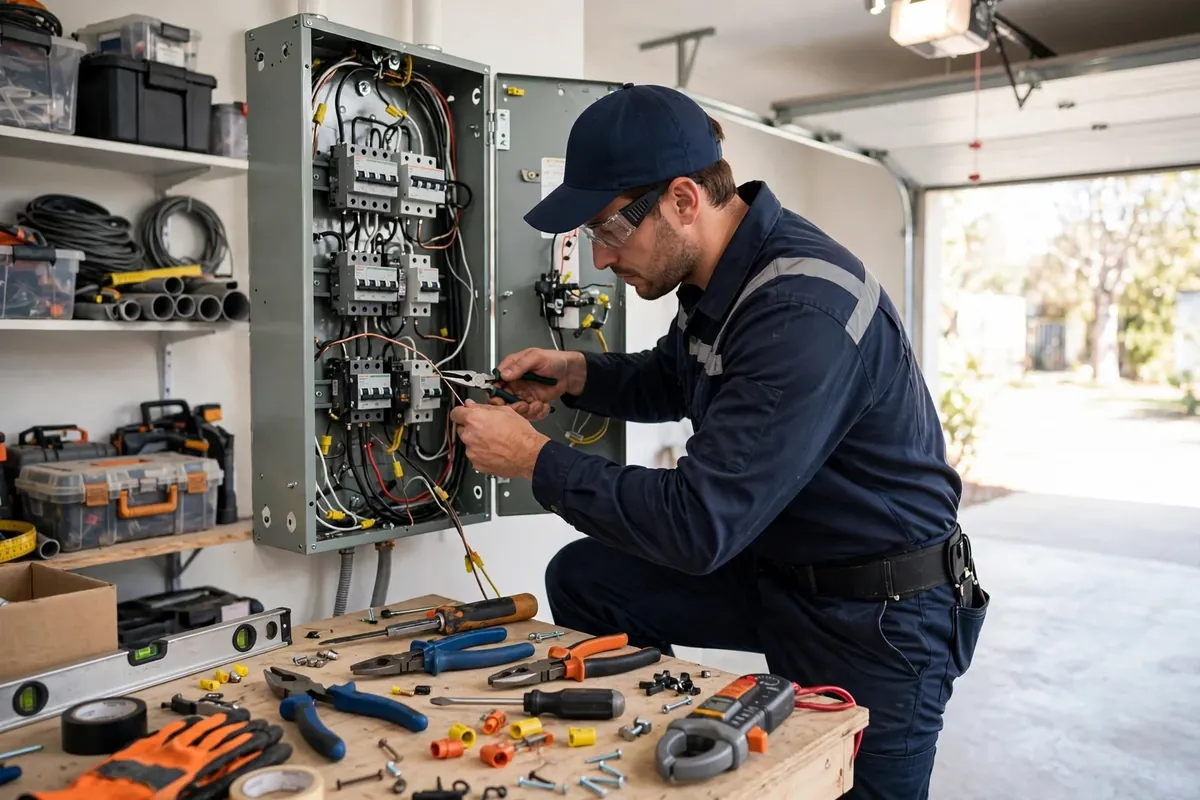
Sometimes the network is fine, the charger is fine, and the app is the problem. The signs are: the charger charges normally, a phone beside the charger connects to Wi-Fi fine, but the app shows no charger, shows a stale charger, or refuses to sign in. The account checks, in order, are: is the app signed into the correct account — the account the charger was registered under, not a second account created by accident? Has the phone changed, or has the app been reinstalled, since the charger was set up? Is the app itself up to date, and is the phone's operating system current? A charger registered under one account will not appear under another, and a phone change is the most common way an owner ends up signed into the wrong account without realising it.
The fixes are account fixes, not network fixes. Sign out and back into the correct account, confirm the charger appears, and if it does not, use the maker's account recovery or charger transfer process rather than factory-resetting the charger. A factory reset is a last resort, not a first step: it erases the charger's settings, including its configured current and any sharing configuration, and it creates a reinstallation task that may need an installer. Before any reset, record the charger's settings — its configured current, its schedule ownership, its access settings — so they can be restored. The ownership guide covers the settings worth recording for a Wall Connector; the principle applies to any smart charger.
A related phone trap is the setup network. During initial setup or rejoining, the phone temporarily connects to a network broadcast by the charger, and some phones helpfully switch back to the home network mid-setup or warn that the setup network has no internet and disconnect. If setup repeatedly fails at the same step, the cause is often the phone's network-switching behaviour rather than the charger. The practical workarounds are to keep the phone on the setup network until setup completes, to temporarily disable any auto-switch or Wi-Fi assistant feature during setup, and to stay close to the charger while it runs. These are phone behaviours, not charger faults, and recognising them saves a support call.
7. Schedules, Offline Charging, and the Double-Schedule Trap
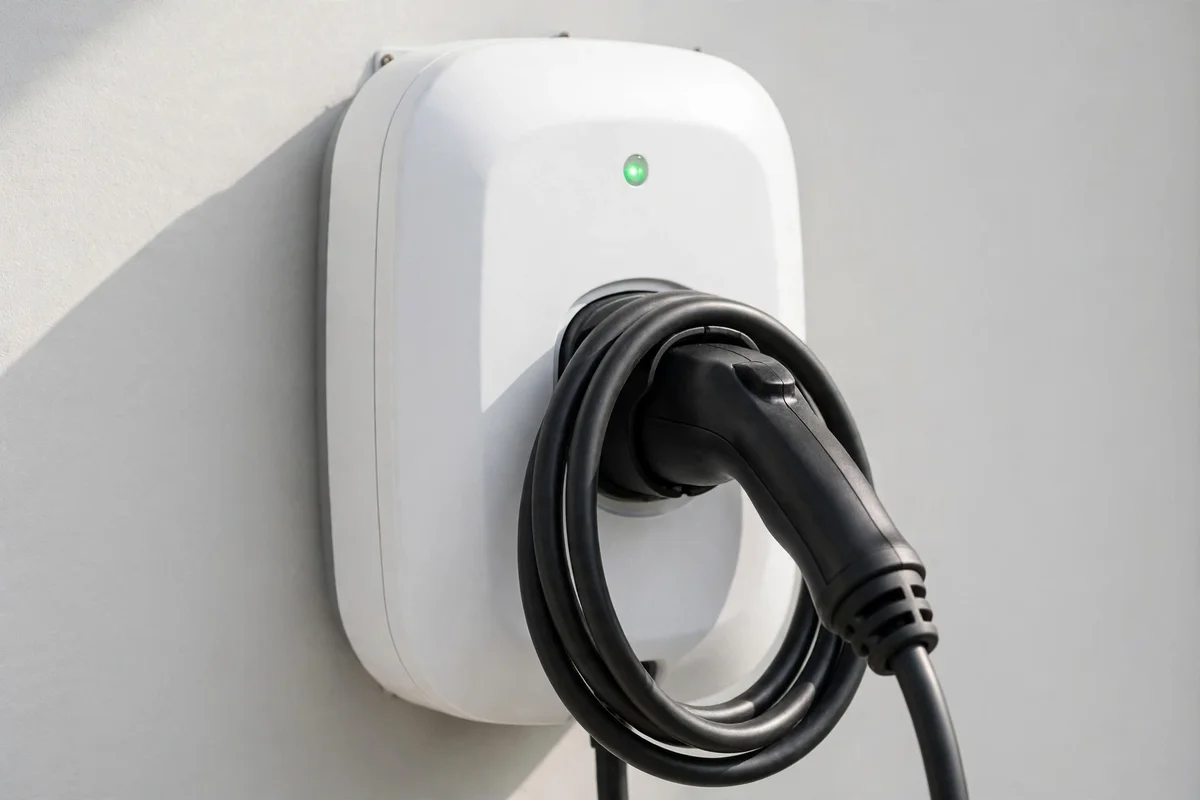
Wi-Fi loss interacts with charging schedules, so this section is worth reading even if your network problem is already fixed. A charging schedule can live in the car or in the charger. When the charger is offline, a schedule stored in the charger may behave differently depending on the maker: some chargers keep their schedule locally and run it without Wi-Fi, while others depend on the cloud and pause scheduling until the connection returns. A schedule stored in the car, by contrast, runs regardless of the charger's Wi-Fi state, because the car is the device enforcing it.
The diagnostic shortcut follows from that: if charging stops following its schedule at the same time the charger goes offline, check where the schedule lives before assuming the charger is broken. If the schedule lives in the charger and the charger is offline, reconnecting usually restores it. If it lives in the car, the offline charger is not the cause, and the schedule problem lies elsewhere.
8. Router Settings That Quietly Break Charger Connections
Beyond signal strength and passwords, a handful of router settings can quietly break a charger connection while every phone and laptop in the house works fine. These settings rarely appear in a charger's manual, because they belong to the router, but they are worth checking when a charger refuses to stay connected despite a strong signal and a correct password.
The first is address assignment. Home routers hand out network addresses automatically through DHCP, and most devices accept whatever address they are given. Some chargers, however, behave better with a reserved address — a fixed address the router always assigns to the charger's hardware identifier (its MAC address). A reservation prevents the address from changing after a router restart, which is a known trigger for chargers that cache their previous address. Setting a reservation is a router-admin task: find the charger in the router's connected-devices list, note its hardware identifier, and reserve an address for it. It costs nothing, changes nothing for other devices, and removes one variable from every future restart.
The second is network segmentation: guest networks, device isolation, and parental controls. A charger accidentally joined to a guest network may be isolated from the app's cloud service or from the phone that manages it, even though it appears connected. A router feature that isolates wireless clients from each other can have the same effect. If a charger connects but the app cannot reach it, check which network name it joined, confirm isolation features are off for the charger's network, and confirm no parental-control schedule is switching the charger's network access off at night — which is exactly when charging sessions run. A schedule that silences a teenager's tablet at midnight can also silence a charger's reporting, and the symptom looks like a charger fault until the schedule is found.
The third is channel congestion. The 2.4 GHz band has a limited set of channels, and in a dense neighbourhood — an apartment block, a townhouse row, a street of detached houses with routers in every garage — neighbouring networks can crowd the same channel and drown a weak garage signal in interference. A router set to choose its channel automatically usually handles this, but a router locked to a congested channel will not. A free Wi-Fi analyser app on a phone, run from the garage, shows which channels neighbouring networks occupy and how strong they are. If the charger's channel is crowded, switching the router to a quieter channel — commonly 1, 6, or 11 on the 2.4 GHz band, which do not overlap each other — can stabilise a connection that nothing else fixes. Microwave ovens, older cordless phones, and some wireless cameras also share this spectrum, so a charger that drops only when a particular appliance runs is pointing at interference, not at its own hardware.
The fourth is the modem and the internet provider. A charger can be perfectly connected to the home network and still appear offline in the app if the internet connection itself is down, because the app reaches the charger through the maker's cloud service. Before blaming the charger, check whether other internet services work from the house, check the provider's outage page from a phone's mobile connection, and restart the modem — the provider's box, which is a different device from the router in many homes — if the internet is down. A modem restart takes minutes and is often the whole fix on an evening when everything in the house seems offline at once.
Finally, for garages that are detached or far from the house, consider a wired backhaul: an Ethernet cable from the router to an access point in or near the garage. A wired access point does not depend on wireless signal crossing the yard, and it gives the charger a strong, stable connection that no extender placement puzzle can match. Running Ethernet is a bigger job than adding a mesh node, and it may need a professional for an outdoor or underground run, but for a detached garage it is the most reliable long-term answer, and it also improves every other device in the garage.
9. When Wi-Fi Troubleshooting Stops and Professional Help Starts
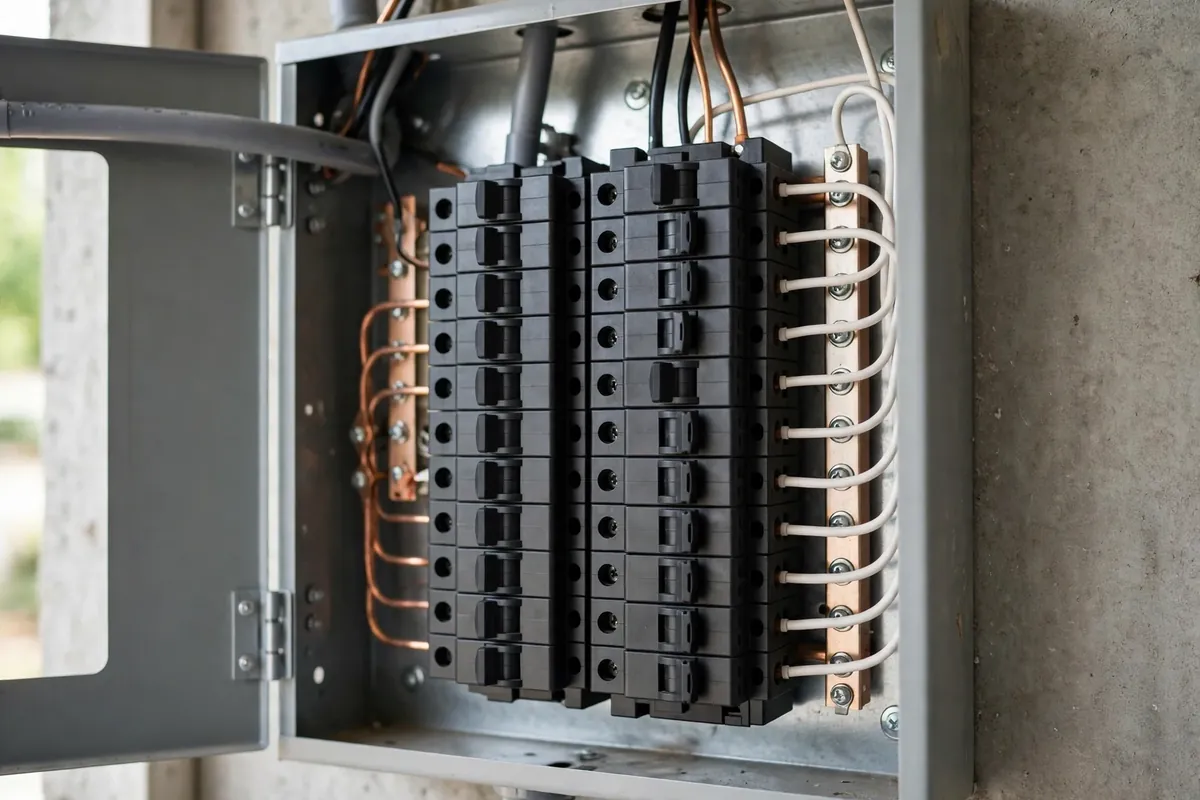
Wi-Fi troubleshooting has a clear boundary, and respecting it keeps owners safe. The boundary is the charger itself: everything up to the charger's network settings, the router, the signal, and the app is owner territory. Everything inside the charger, inside the panel, or involving wiring is not. Heat beyond mild warmth at the charger, cable, or connector; damage to the cable or connector; a burning smell; repeated breaker trips; water entry; or a fault pattern the manual does not explain — any of these ends the Wi-Fi investigation and starts an electrician conversation, even if the app also shows the charger offline. An offline app and a hot connector are two problems, and the hot connector is the one that matters.
The other boundary is repetition. A fix that has to be applied weekly is not a fix; it is a symptom of an underlying problem, usually signal strength or a failing router, and the underlying problem should be addressed rather than the fix repeated. If a charger drops weekly despite a strong signal, a correct password, and a current app, the maker's support route is the next step, with a clear description ready: what still works, what the lights show, what changed and when, and what has already been tried. Support can diagnose from that description far faster than from "the Wi-Fi does not work", and it can distinguish a failing radio from a configuration problem without a visit.
Finally, keep a short record of the network that serves the charger: the Wi-Fi name, the band arrangement, the extender or mesh layout, the charger's setup credentials, and the schedule ownership. That record is the difference between a ten-minute rejoin after the next router change and another evening of troubleshooting from scratch. Chargers outlive routers, phones, and internet providers, and the record is what carries the setup across all three.
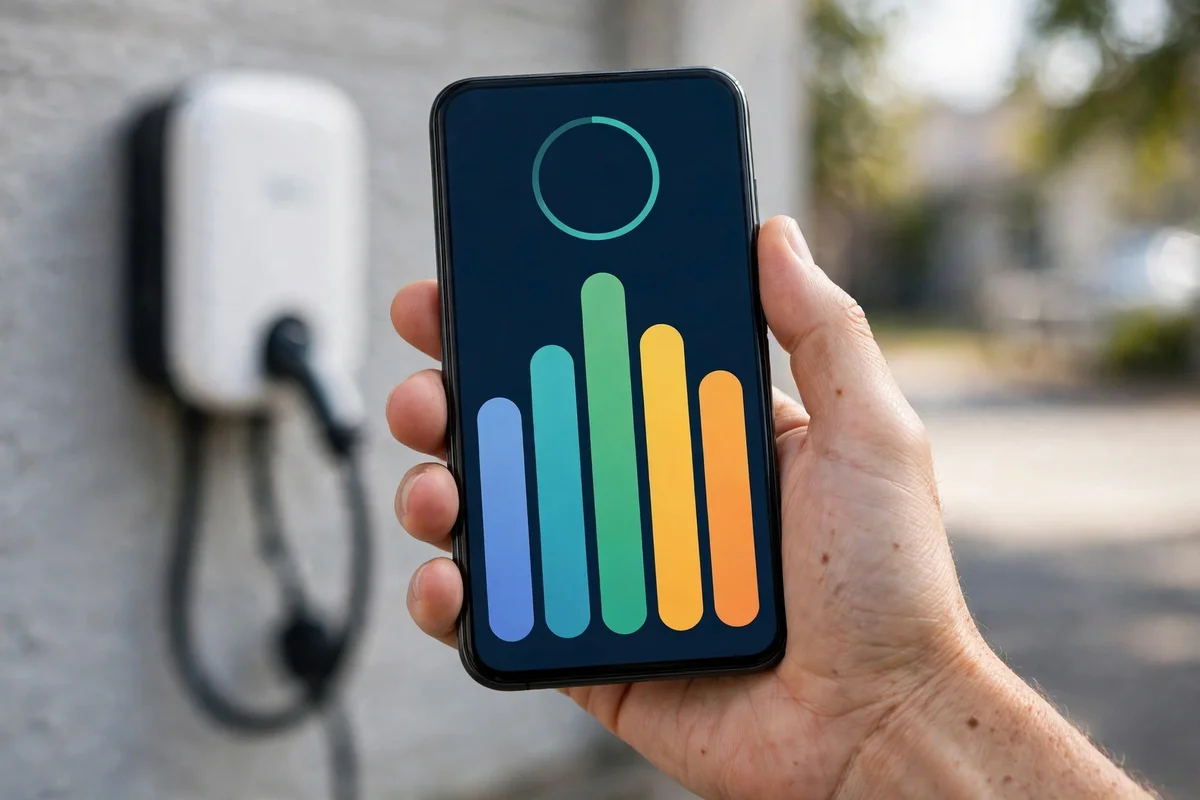
Key Takeaways
- A smart charger that loses Wi-Fi usually keeps charging; what is lost is reporting and remote control, not electricity.
- Start with three observations: does the car charge, do the charger's lights look normal, and does the rest of the house have Wi-Fi at the garage.
- Every Wi-Fi problem belongs to the charger, the network, or the account — identify the group before changing anything, and change one thing at a time.
- Chronic dropping points at signal strength in the garage; move an access point closer, add a mesh node, and prefer the 2.4 GHz band's range for the charger.
- A changed password or a new router is the most common cause of a sudden offline charger; rejoin with the new details and keep the setup credentials recorded.
- After a power outage, restart the router fully first, then restart the charger, so the charger joins a network that is ready.
- App problems are often account problems: confirm the charger is registered under the account signed in, and do not factory-reset a charger as a first step.
- Let one device own the charging schedule; a schedule stored in the car runs regardless of charger Wi-Fi, while a charger-stored schedule may pause while offline.
- Check router settings when signal and password are fine: a reserved address, guest-network isolation, a congested channel, or a modem outage can each silence a charger while phones work.
- Heat, damage, burning smell, repeated tripping, or an unexplained fault pattern end the Wi-Fi investigation and start an electrician conversation.
Does my smart charger still charge if Wi-Fi goes down?
Yes, in the normal case. Wi-Fi carries reporting, app control, and updates; it does not carry the electricity, and the charger delivers power at its configured current whether or not it is connected. A schedule stored in the car also keeps running while the charger is offline. What stops during an outage is remote control and session reporting, and a schedule stored in the charger itself may pause depending on the maker. If the car does not charge at all, the problem is not Wi-Fi — check the breaker, the schedule, and the connector first.
Why does my charger lose Wi-Fi after a power outage?
Because the charger and the router restart at different speeds after power returns. A charger that boots before the router is ready can fail to join the network and wait a long time before retrying. The fix is to restart in the right order: let the router come fully online first, then restart the charger by switching its breaker off and on once, so it joins a network that is actually ready. If outages repeatedly leave the charger offline, the same restart order applied once after each outage is the routine, and a mesh node or access point near the garage can reduce the underlying fragility.
Should my charger use the 2.4 GHz or 5 GHz network?
The 2.4 GHz band, in almost every home case. A charger sends tiny amounts of data, so it needs reliability and range, not speed, and 2.4 GHz travels farther and passes through walls better than 5 GHz. The 5 GHz band is faster over short distances but fades faster through the walls between a router and a garage. If a router merges both bands under one name and the charger struggles to join, giving the 2.4 GHz band its own name during setup, or adjusting the router's band-steering setting, usually resolves it.
Why does my charger keep disconnecting every few days?
Chronic dropping usually means a weak or unstable signal at the garage, not a faulty charger setting. Measure the signal with a phone beside the charger: if it is weak, move an access point closer to the garage side of the house or add a mesh node between the router and the garage, and place the node where the signal is still reasonable rather than in the garage itself. If the signal is strong and the charger still drops, check for a router under load or a failing router, and then the charger's own radio through the maker's support route, with your observations ready.
I changed my Wi-Fi password — how do I reconnect my charger?
Put the charger into setup mode — usually a button hold, a QR code scan, or a temporary setup network the charger broadcasts — and enter the new Wi-Fi name and password through the app or setup page, following the charger's manual for the exact steps. The charger cannot guess the new password, so it will stay offline until it is rejoined. Photograph the QR label and record the setup credentials with the manual, because the next router or password change will need them again. After rejoining, verify with a real charging session, not just the app's online indicator.
Can I run scheduled charging while the charger is offline?
It depends on where the schedule lives. A schedule stored in the car runs regardless of the charger's Wi-Fi state, because the car enforces it. A schedule stored in the charger may keep running locally or may pause until the connection returns, depending on the maker. That is why the standing advice is to let one device own the schedule and to note which one: if your schedule lives in the charger and the charger is offline, reconnecting restores it; if it lives in the car, an offline charger is not the cause of a missed schedule, and the schedule problem lies elsewhere.
Related Posts
- Tesla Wall Connector Ownership Guide: Daily Use, App Settings, and a Second EV
- First EV? A Beginner's Guide to Charging at Home
- EV Charger Keeps Tripping the Breaker? Causes and Fixes
- EV Charger Noises and Heat: What's Normal, What's Not
Charger offline, or showing a fault you cannot explain? Call now at (407) 555-0100 — we check the charger and circuit, and get your home charging back to normal across Orlando.
Sources consulted: Smart charger maker documentation on Wi-Fi setup, offline behaviour, and firmware updates; home networking guidance on 2.4 GHz range and mesh placement; and NEC Article 625 provisions for EV charging systems.